




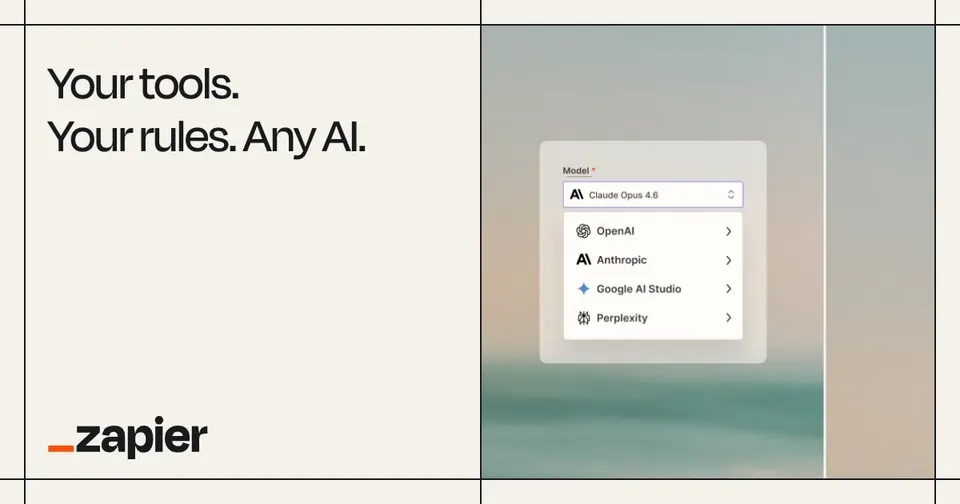
Let Claude take actions in any app via Zapier
Your AI can write the email or the update, but someone still has to paste it into each app.
3 stepsSimple
Claude DesktopClaude CodeZapier MCPGoogle Workspace
How it connects
Your AI reaches your apps through small connectors called MCP servers.
Your AI
Claude DesktopClaude Code
Connectors
Zapier MCPGoogle Workspace
Your apps
ZapierGmail
This setup is for people who want Claude to finish tasks in their other apps instead of handing back text to paste. Zapier MCP exposes actions from apps connected to your Zapier account, such as creating a CRM record or posting a Slack message, and the Google Workspace server adds email and calendar context. You end up with Claude completing multi-step jobs across tools you already use, limited to the actions you switched on.
Set it up
3 steps. Open one for the details.
1Set up Zapier MCP
Go to Zapier's MCP page, create an MCP server, and add only the actions you need, such as HubSpot Create Contact or Slack Send Channel Message. For each action you can fix some fields and let Claude fill others, for example locking the Slack channel. Copy the server URL and add it to Claude Desktop as a custom connector or to Claude Code with claude mcp add.
Tip: Treat the server URL as a secret; anyone with it can run your enabled actions.
2Connect Gmail and Calendar
Add a Google Workspace MCP server so Claude can read email threads and calendar events for context. Start with read-only scopes. If you prefer, you can add Gmail and Google Calendar actions through Zapier instead and skip the separate server.
Tip: Pick one route for Gmail so Claude doesn't see two tools that do the same thing.
3Ask for the outcome
Ask for the end result in one prompt, for example take the lead from this email, add them to the CRM and tell #sales. Claude picks the Zapier actions and shows the fields before each call. Check the first few runs in each target app.
Tip: Keep tool approval prompts on in Claude for any action that sends messages or emails.
Then just ask
Things to say once it's connected. Click one to copy it.
Ask Claude Desktop…Claude Desktop
Good to know
What you need, what it won't do, and how to keep it safe.
What you need
- A Zapier account with the target apps connected
- Claude Desktop or Claude Code
- A Google account if you add the Workspace server
- Enough Zapier task allowance for the calls you expect
Limits
- Zapier actions only cover what each app's Zapier integration supports, so some fields or operations may be missing.
- Mistakes happen in live apps, such as duplicate CRM contacts, so review early runs.
- Multi-step jobs can stop halfway if one action fails, leaving some apps updated and others not.
Keep it safe
- Only enable the specific Zapier actions you need.
- Keep approval on for sending email.
Questions
Straight answers before you start
Does Zapier MCP cost money?
Zapier MCP calls count against your Zapier plan's task usage. Check Zapier's current pricing page for how many tasks each call uses and what your plan includes.
Which apps can Claude use?
Any app that has Zapier actions and that you connect to your Zapier account, which covers thousands of services. Claude only sees the actions you add to the MCP server.
Can Claude do things I didn't enable?
No. Claude can call only the actions configured on your Zapier MCP server. Remove an action in Zapier and it disappears from Claude's tool list.
Which hosts work?
Zapier MCP is a remote server, so it works in Claude Desktop, Claude Code and other MCP clients that support remote servers.
Tools in this setup
The products involved
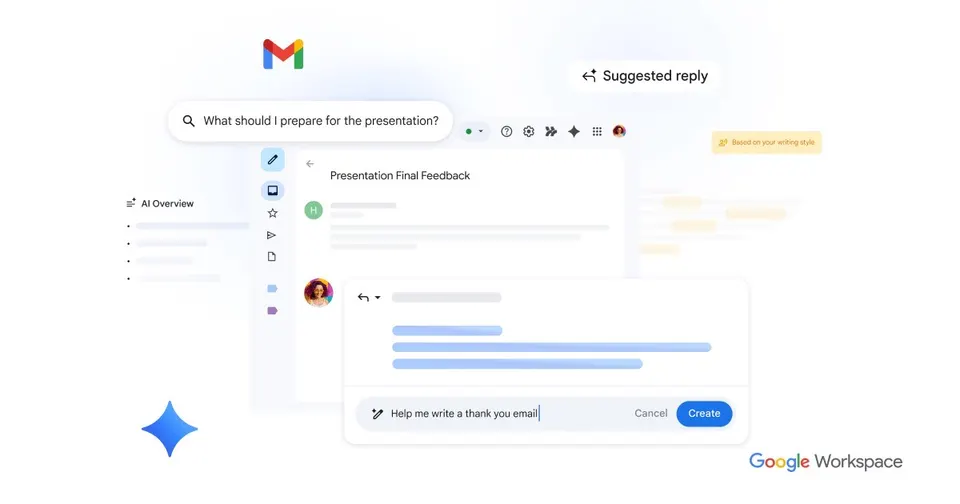
Gmail is Google's email service, free for personal use and available on your own domain through Google Workspace. Its spam filtering keeps junk out of your inbox, and search finds old messages fast. Gemini AI features help you draft replies and summarise long threads. It connects to Google Calendar, which suits anyone already using Google's apps.
Free planTry