


Skip to content

Let an agent use Gmail and Calendar

Scheduling and inbox triage eat the first hour of every day.

4 stepsModerate
Claude DesktopClaude CodeGoogle WorkspaceSlack

How it connects

Your AI reaches your apps through small connectors called MCP servers.
Your AI
Claude DesktopClaude Code
Connectors
Google WorkspaceSlack
Your apps
GmailGoogle CalendarSlack

This setup is for people who spend the start of each day sorting email and juggling meetings. Claude reads your Gmail and Google Calendar through a community Workspace MCP server, drafts replies, suggests meeting times and sends you a morning brief in Slack. You end up with drafts waiting for review and a short list of what matters today.

Set it up

4 steps. Open one for the details.
  1. 1Create Google OAuth credentials

    In Google Cloud Console, create a project, enable the Gmail API and Google Calendar API, and create an OAuth client of type Desktop app. Configure the consent screen and add yourself as a test user if the app stays in testing. Request read-only Gmail and Calendar scopes to begin with.

    Tip: Use a separate Cloud project for the agent so you can revoke it without touching other apps.

  2. 2Run the Workspace MCP server

    Install a Google Workspace MCP server, such as the open-source google_workspace_mcp project, and pass your OAuth client ID and secret as environment variables. Register it in Claude Desktop's config file or with claude mcp add in Claude Code, then complete the browser sign-in. Ask Claude to list today's events to confirm it works.

    Tip: Read the server's README for the exact environment variable names; they differ between projects.

  3. 3Start with drafts

    Ask Claude to draft replies in Gmail rather than send them, and to propose meeting slots without creating events. Review the drafts in Gmail for tone, names and dates. Add the compose or calendar write scope only once the drafts are consistently right.

    Tip: Tell Claude which emails it should never answer, such as anything from legal or HR.

  4. 4Get a morning brief

    Add the Slack MCP server limited to posting in your own DM or a private channel. Ask Claude each morning for unread emails that need a reply, today's meetings with prep notes, and conflicts. Keep the brief short so you read it.

    Tip: Run it from Claude Code on a schedule if you want the brief waiting before you log in.

Then just ask

Things to say once it's connected. Click one to copy it.
Ask Claude Desktop…Claude Desktop

Good to know

What you need, what it won't do, and how to keep it safe.
What you need
  • A Google account and a Google Cloud project with Gmail and Calendar APIs enabled
  • An OAuth client ID and secret
  • Python or Node, depending on the Workspace MCP server you choose
  • Claude Desktop or Claude Code, plus Slack for the brief
Limits
  • Claude can misjudge which emails matter; check the brief against your inbox for the first weeks.
  • Time zones and recurring events cause most scheduling mistakes, so confirm proposed slots before sending invites.
  • Google may show an unverified app warning and expire test tokens, which means signing in again periodically.
Keep it safe
  • Community server. Review the source before installing.
  • Grant read scopes first; add send/write only when needed.

Questions

Straight answers before you start
Is this server official?
No. Google Workspace MCP servers are community projects, so read the source and check how they store tokens before installing. Your OAuth tokens give access to your mailbox, so treat the machine running the server as sensitive.
Does it work with a Google Workspace work account?
Often yes, but your admin may block unverified OAuth apps or limit API access. Ask your Workspace admin before setting it up on a company account.
Can Claude send email on its own?
Only if you grant a send scope and the server exposes a send tool. Keep to drafts until you trust the output, and keep tool approval prompts switched on in Claude.
Does it cost anything?
The Gmail and Calendar APIs are free for normal personal use within Google's quotas. You still need a Claude plan that supports MCP servers.

Tools in this setup

The products involved
Gmail: Google's email service.

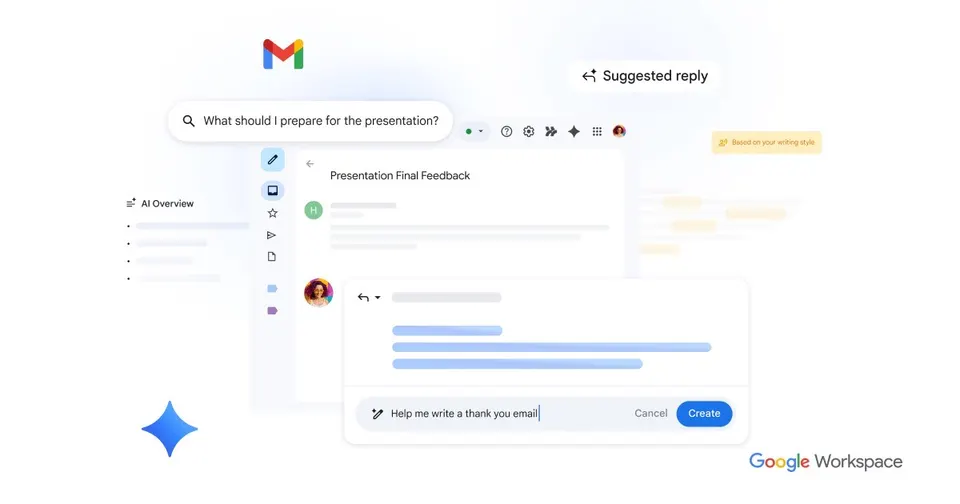
Gmail is Google's email service, free for personal use and available on your own domain through Google Workspace. Its spam filtering keeps junk out of your inbox, and search finds old messages fast. Gemini AI features help you draft replies and summarise long threads. It connects to Google Calendar, which suits anyone already using Google's apps.

Free planTry