




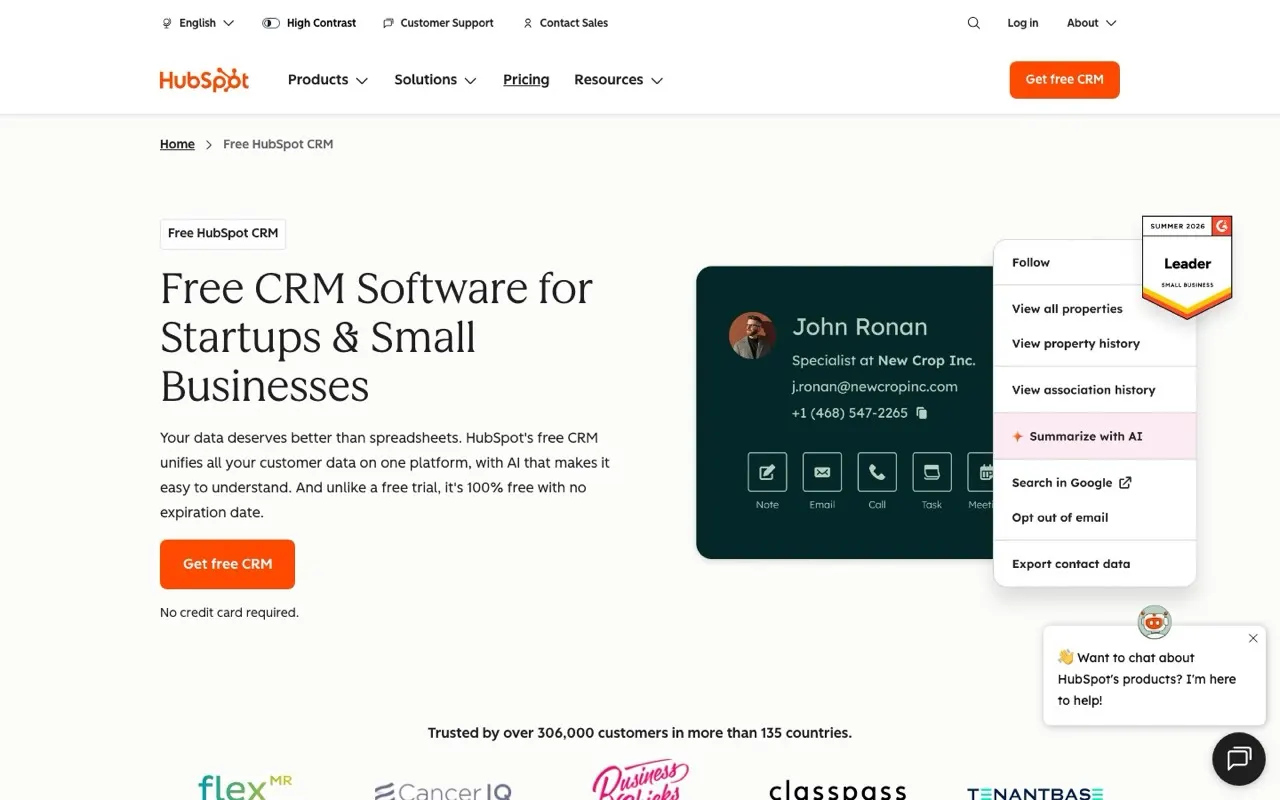
Connect AI to HubSpot
Updating deal notes and finding account context takes time away from selling.
4 stepsModerate
Claude DesktopClaude CodeHubSpotGoogle Workspace
How it connects
Your AI reaches your apps through small connectors called MCP servers.
Your AI
Claude DesktopClaude Code
Connectors
HubSpotGoogle Workspace
Your apps
HubSpotGmail
This setup is for founders and small sales teams who keep their pipeline in HubSpot and lose time on admin. Claude reads contacts, companies and deals through the HubSpot MCP server, summarises accounts, and proposes updates you approve. You end up with a chat window that answers pipeline questions and drafts follow-up emails from real deal context.
Set it up
4 steps. Open one for the details.
1Connect HubSpot securely
In HubSpot, either authorise HubSpot's remote MCP server with OAuth or create a private app under Settings > Integrations > Private apps. Tick only the CRM scopes you need, typically read and write for contacts, companies and deals. Copy the access token and store it somewhere safe.
Tip: If you only want summaries at first, grant read scopes and add write scopes later.
2Register the HubSpot MCP server
Open Claude Desktop's config file or run claude mcp add in Claude Code, and add the HubSpot server with your token as an environment variable. Restart Claude Desktop so it picks up the change. Check that the HubSpot tools appear in the tools menu before you continue.
Tip: Keep the token in an environment variable rather than pasting it into a shared config file.
3Start with read tasks
Ask Claude to summarise one account you know well, then compare its answer with what HubSpot shows. Try a pipeline review for the current month and check the deal stages and amounts it reports. This tells you whether the scopes and the data match before anything changes.
Tip: Pick an account with messy notes; that is where errors show up first.
4Add email context
Add a Google Workspace MCP server and sign in with the Google account you use for sales email. Ask Claude to draft a follow-up from the latest deal notes and leave it in Gmail drafts. Read every draft before you send it.
Tip: Ask for drafts only, so nothing leaves your outbox without you.
Then just ask
Things to say once it's connected. Click one to copy it.
Ask Claude Desktop…Claude Desktop
Good to know
What you need, what it won't do, and how to keep it safe.
What you need
- A HubSpot account with permission to create private apps or authorise apps
- Claude Desktop or Claude Code
- A Google Workspace or Gmail account for drafting follow-ups
- Node.js installed if you run the HubSpot server locally
Limits
- Claude only sees what the token's scopes and your HubSpot plan expose, so custom objects or restricted pipelines may be missing.
- Large portals can return long lists; ask for filtered views instead of the whole pipeline.
- Claude can misread loosely written notes, so check summaries before you act on them.
Keep it safe
- Scope the token to CRM objects only.
- Approve every write until patterns are trusted.
Questions
Straight answers before you start
Which HubSpot plan do I need?
Private apps and the CRM API are available on free HubSpot accounts, but the objects and properties you can use depend on your plan. Check that the data you want, such as custom objects, exists on your tier before you build prompts around it.
Can Claude change deals without asking me?
Claude Desktop and Claude Code ask for approval before each tool call unless you allow that tool permanently. Leave write tools on ask until you have seen enough correct updates to trust them.
Does this work in Claude Code as well as Claude Desktop?
Yes. Both hosts support MCP servers, and the HubSpot and Workspace servers work the same way in each. Claude Desktop suits sales users, while Claude Code suits people who already work in a terminal.
What happens if the token leaks?
Anyone with the token can read and change CRM records within its scopes. Revoke or rotate it in the private app settings, then update your MCP config with the new one.
Tools in this setup
The products involved
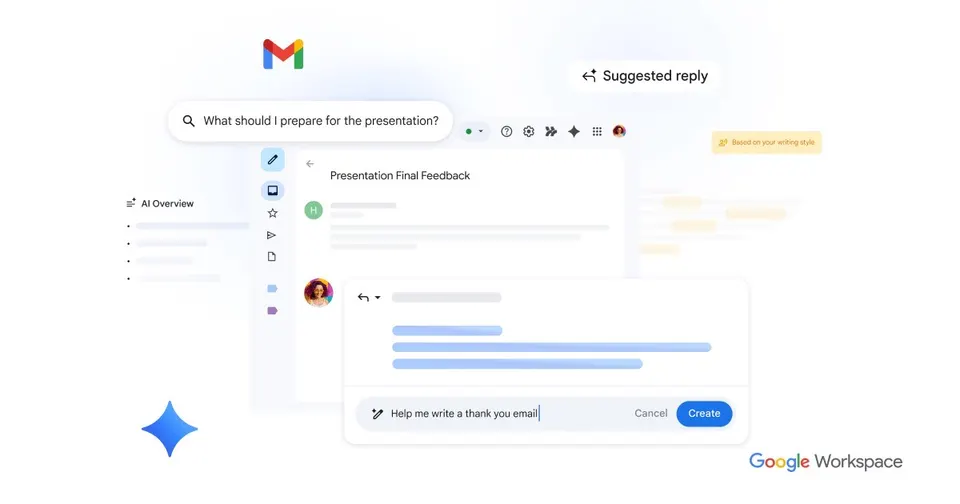
Gmail is Google's email service, free for personal use and available on your own domain through Google Workspace. Its spam filtering keeps junk out of your inbox, and search finds old messages fast. Gemini AI features help you draft replies and summarise long threads. It connects to Google Calendar, which suits anyone already using Google's apps.
Free planTry